Design your custom code snippets inside AX 2012

Microsoft Dynamics AX 2012 comes with a few predefined useful code snippets such as whileSelect or parm template, to use them we would simply type in ‘whileSelect’ or ‘parm’ inside of the X++ code editor and press TAB.
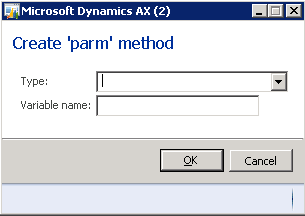
In case of the parm + TAB you would be prompted with the following dialog box:
this can be accessible by clicking ‘alt’ + R (using so called editor scripts):
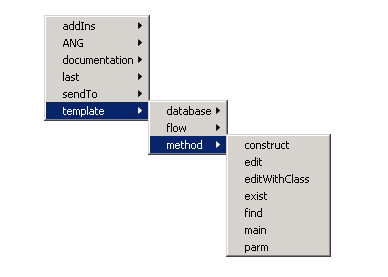
Today we will try to create to create something similar. We will create a script that could be called by using TAB key and will prompt us for Text and Name which we will use to create simple piece of code
infolog(strFmt("Text", Name));
this example is not particularly useful but as you may imagine we might create something more complex and possibly more useful, approach will stay the same.
In order to make this happen we will need to create custom script with prefixed with template_ .
It is important because after you type something and press TAB, MorphX will look inside EditorScripts, and try to match typed keyword with the last part of the method name (before last underscore).
For the sake of out example we will create new method inside EditorScripts class called template_flow_inf.
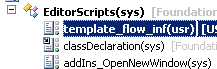
After we have done that you can notice that our new method will be present after we click ‘alt’ + R.
Inside this method we will put logic that will create new dialog with two field Text and Name, that we will then use as an argument for the infoLog method that will create appropriate string, which we will insert into the editor.
public void template_flow_inf(Editor editor)
{
Source template;
xppSource xppSource = new xppSource(editor.columnNo()); //Set indentation
//--------------------------Dialog box---------------------------------------------------
Dialog dialog = new Dialog("Create infolog");
DialogField dialogText = dialog.addField(extendedTypeStr(SysElementName),"Text");
DialogField dialogName = dialog.addField(extendedTypeStr(SysElementName),"Name");
//----------------------------------------------------------------------------------------
if (dialog.run())
{
template = xppSource.infoLog(dialogText.value(), dialogName.value()); //create string
editor.insertLines(template); //pass it to the editor
}
}
Also I added new method called infoLog inside xppSource class. This step is optional but included it because xppSource class contains a few methods that are useful when creating new snippets, so feel free to check them out:
Source infoLog(SysElementName text, SysElementName name)
{
//remove whitespaces from left and right side
name = strLRTrim(name);
text = strLRTrim(text);
source += strFmt("infolog(strFmt(\"%1\", %2", text,name);
source += "));";
return source;
}
Now we are ready to go, simple wasn't it?
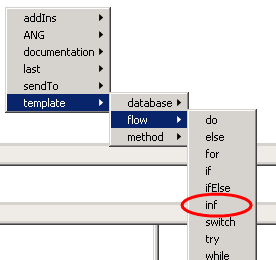
We can use it two ways, we can either click ‘alt’ + R and select template -> flow -> inf, or we can simply type in inf and then click TAB.
We would be prompted with the following dialogbox.
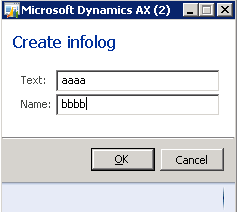
And if everything went alright we will have
infolog(strFmt("aaaa", bbbb));
See more

AGA pomaga – poznaj inteligentnego asystenta do przetwarzania zapytań ofertowych: ANEGIS Generative Assistant


Jak z pomocą narzędzi Power Platform, Microsoft Fabric i AI zrealizować plan na cyfrową transformację? ANEGIS Power Center

Obowiązkowy KSeF startuje za 4 miesiące! Umów się na bezpłatne konsultacje i przygotuj swój system na zmiany
Let's talk about your project
Let us know what you need: implementation, migration, system development, or a question you’re looking to have answered. We’ll get back to you with a concrete proposal for the next step - not a sales pitch.